Initial Setup
Allowing Access
Section titled “Allowing Access”Before the SAFE Billing Platorm can access your GoCardless data, you must grant permission. This is done by following a special link in the platform which takes you to GoCardless where you will need to log in and confirm you wish to allow access.
Connecting Your Account
Section titled “Connecting Your Account”From the Main Menu, go to the Advanced tab, then click Account Linking/Status under GoCardless (Direct Debits). If you do not have permission to access this tab, you will need to ask your data protection contact to access this on your behalf.
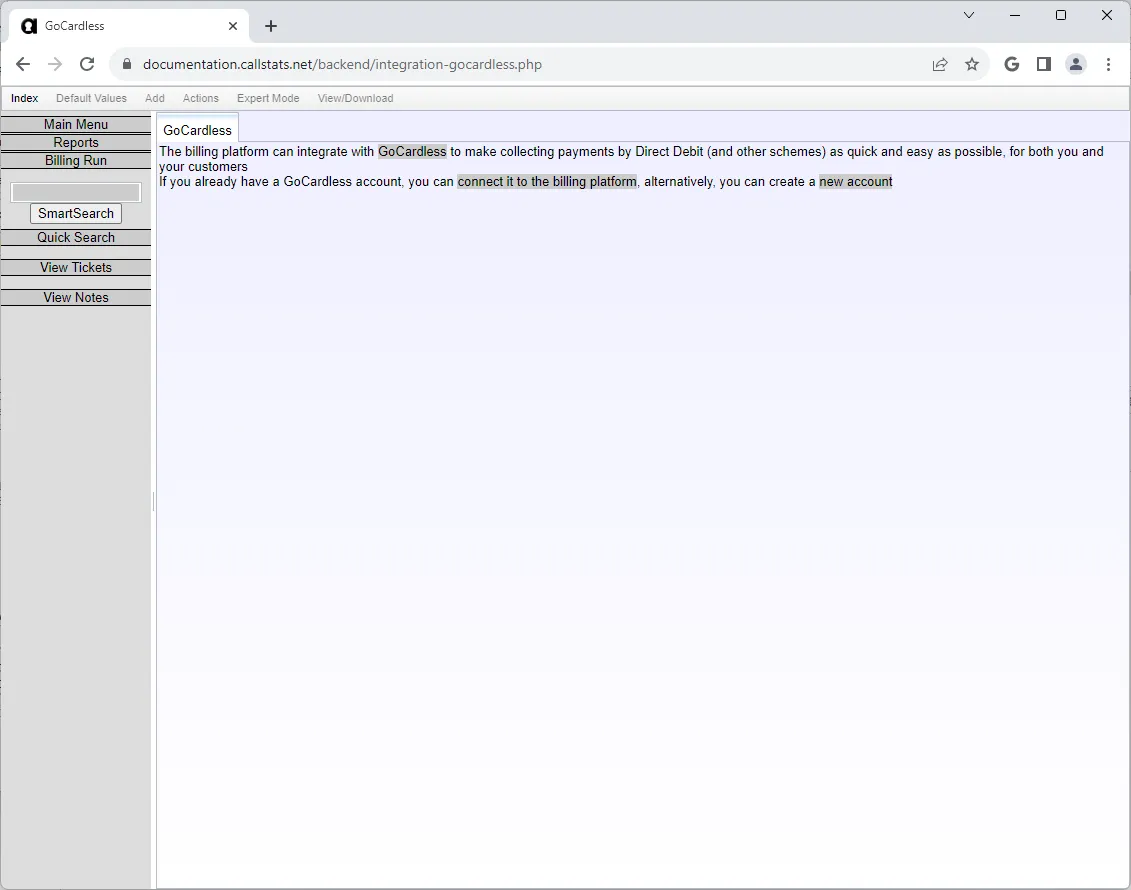
This page shows that your connection is not set up. You may either link an existing GoCardless account, or sign up for a new one.
Existing GoCardless User
Section titled “Existing GoCardless User”If you already have a GoCardless account, click connect it to the billing platform, which will take you to the GoCardless login page if you are not already logged in
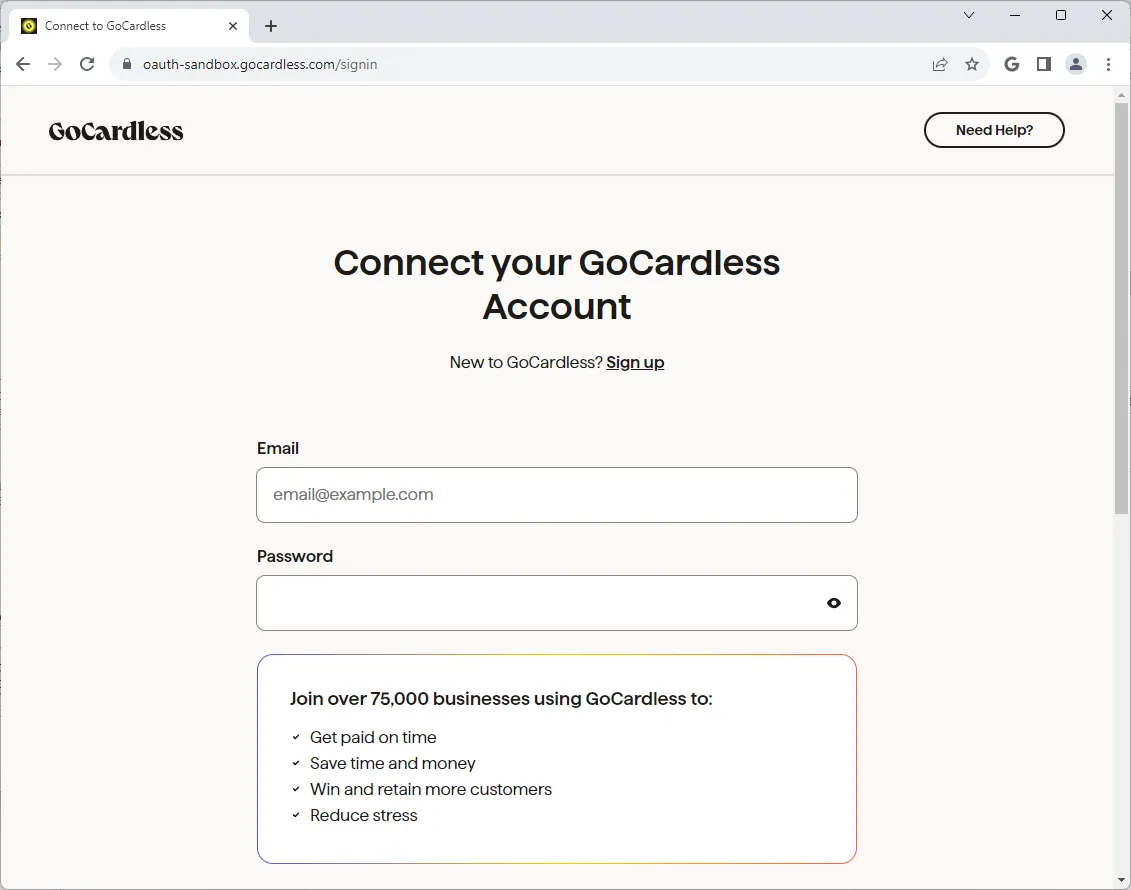
Once you have logged in, you will be able to grant authorisation for the platform to access your data.
New GoCardless User
Section titled “New GoCardless User”If you do not already have a GoCardless account, click new account, which will take you to the GoCardless signup page.
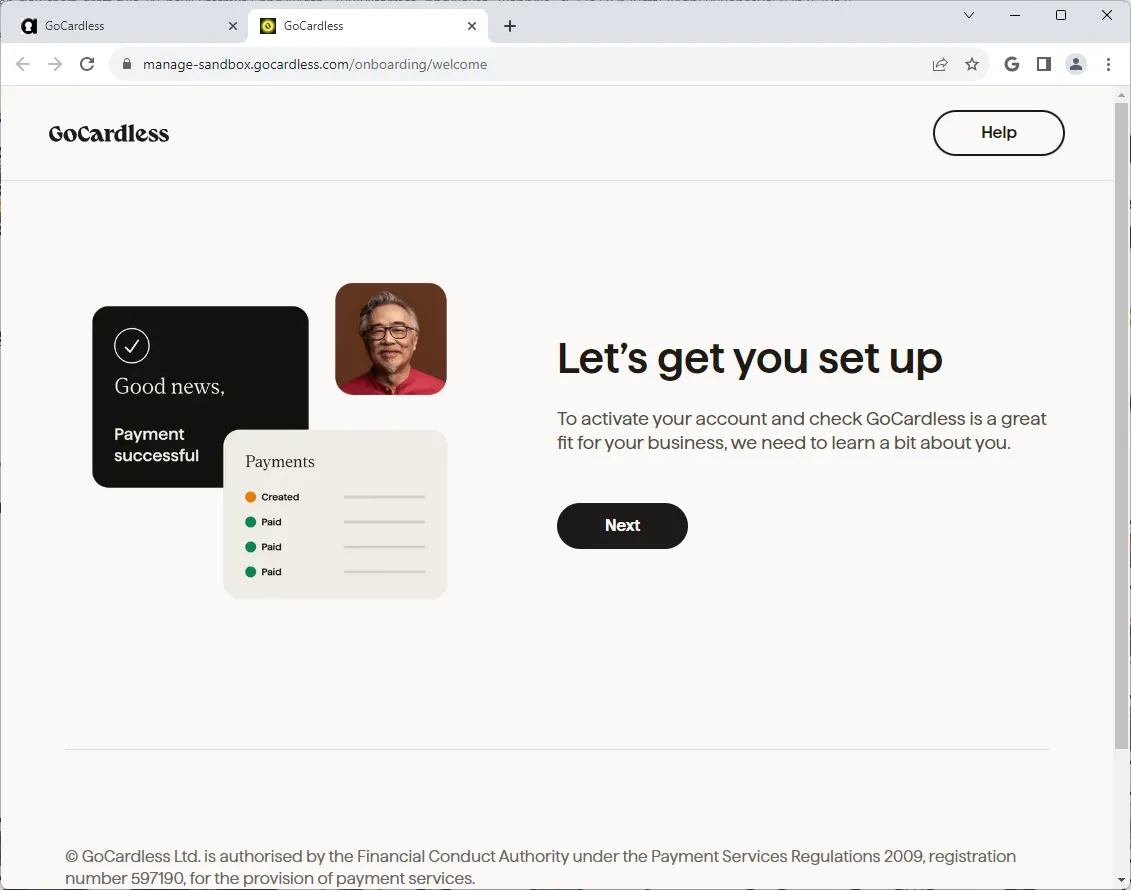
Once you have created an account, you will be able to grant authorisation for the platform to access your data.
After Connection
Section titled “After Connection”If access is granted, you will be shown confirmation
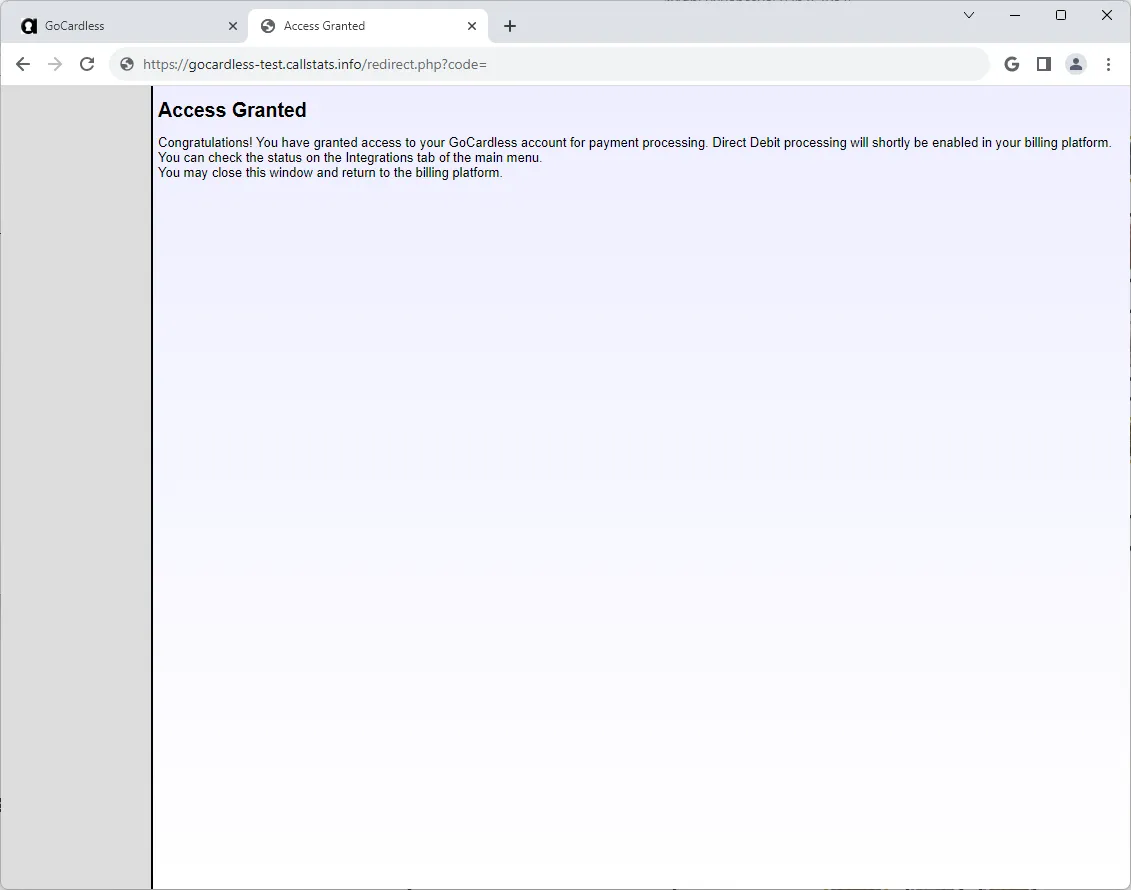
At this stage, the connection needs to be finalised and tested. You will be sent an email when this is complete, or you can recheck the Account Linking/Status page from the Advanced tab (though do not attempt to connect again).
Webhook Dispatcher Secret
Section titled “Webhook Dispatcher Secret”GoCardless callbacks reach the platform through a central webhook dispatcher. Each callback must carry a valid signature made with the Webhook dispatcher authentication secret, set for GoCardless under Direct Debit Processing in the Direct Debit module settings. Once a secret is set, a callback without a valid signature is refused.
Changing the secret
Section titled “Changing the secret”To change the secret without refusing callbacks while the dispatcher switches over:
- Enter the secret the dispatcher uses today in Webhook dispatcher authentication secret (previous). Saved secrets are hidden on screen, so take it from your own record of the secret
- Enter the new value in Webhook dispatcher authentication secret
- Once the dispatcher uses the new secret, clear Webhook dispatcher authentication secret (previous)
Until you clear it, callbacks signed with either secret are accepted. The TEST mode settings have their own pair: Webhook dispatcher authentication secret (TEST mode) and Webhook dispatcher authentication secret (TEST mode, previous).
Checking the switch-over
Section titled “Checking the switch-over”The GoCardless Webhook Authentication panel on Platform Status shows a Configured Key Fingerprint and a Previous Key Fingerprint. A fingerprint is a short code worked out from a secret, so you can tell which secret is in place without displaying it. Latest Check Passed With Previous Secret shows when a callback last used the previous secret. Clear the previous secret once callbacks have stopped using it.
The panel is shown only to users with super access.