Initial Setup
Stripe is used on the SAFE Billing Platform for card payments and, optionally, BACS Direct Debit collection. The setup below covers both. If you only plan to take card payments, you can skip the Direct Debit section.
Allowing Access
Section titled “Allowing Access”Before the SAFE Billing Platform can access your Stripe data, you must grant permission. This is done by setting up an API key with the appropriate permissions within your Stripe dashboard and entering this into the platform. Depending upon your level of permissions within Stripe and the platform, you may require assistance from someone with higher levels of access. Stripe provides a testing environment alongside the live environment, please ensure that you are accessing the correct area when generating keys.
Connecting Your Account
Section titled “Connecting Your Account”Log in to your Stripe dashboard, and ensure you are using the correct test/live environment. You will need to access the API keys, accessible through the Developers link in the bottom left, then the API keys section.
You will need to supply the platform with two keys: the Publishable Key and a restricted key.
The Publishable Key already exists on every Stripe account, and is shown at the top of the API keys page. The restricted key, however, does not exist by default. A fresh Stripe account only shows the publishable key and a secret key on this page, with no restricted keys listed. You must create a new restricted key yourself before you can complete the setup.
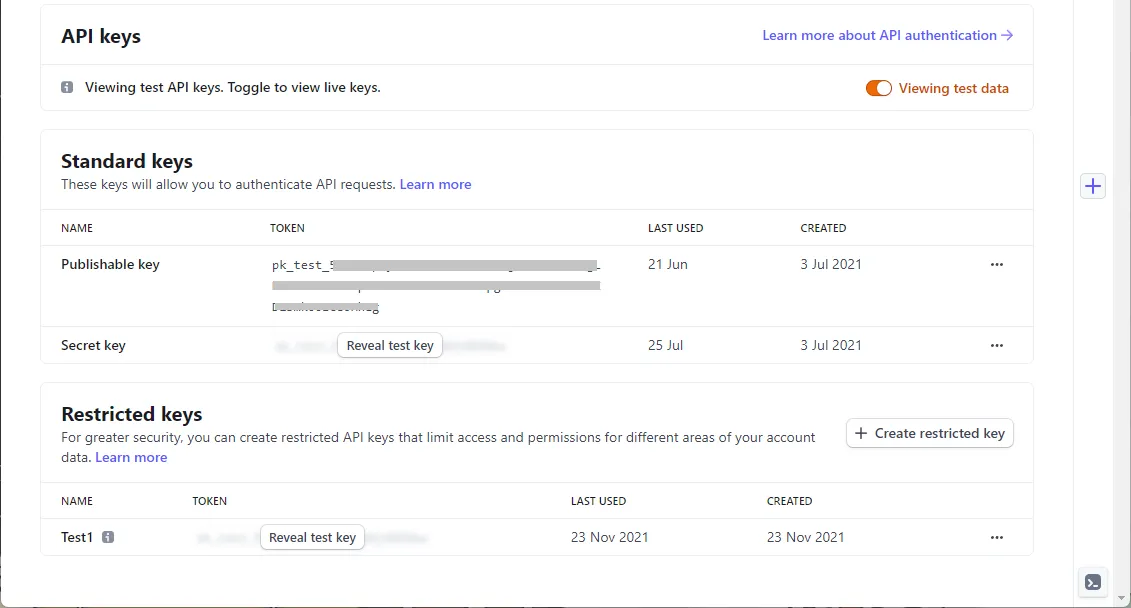
To create the restricted key, click the + Create restricted key button. When asked how the key will be used, select Providing this key to another website. Enter a name for the new key, and enter https://www.billingplatform.uk (SAFE Billing Platform) in the URL field.
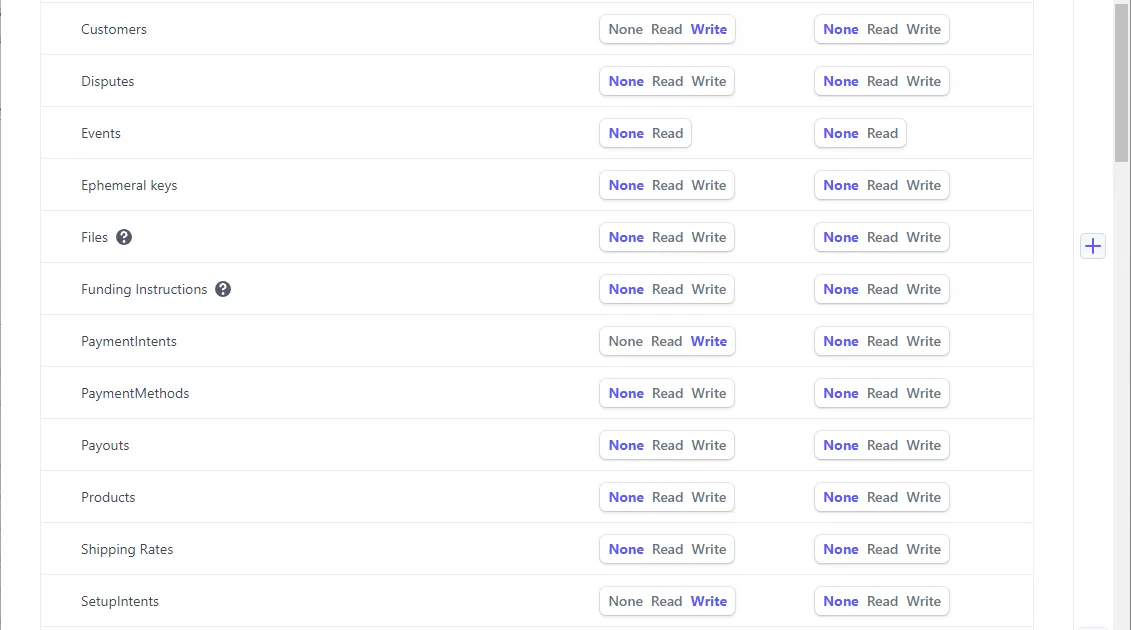
The default permissions are fine for the SAFE Billing Platform. If you want to fine-tune them, check Customise permissions for this key. The platform needs at minimum:
- Customers:Write
- PaymentIntents:Write
- PaymentMethods:Read
- SetupIntents:Write
- Webhook Endpoints:Write
- Checkout Sessions:Write (only needed for Direct Debit collection)
- Charges:Read (only needed for Direct Debit collection)
All of the above are included in Stripe’s default permission set, so if you accept the defaults you already have them. The last two only matter if you plan to collect by Direct Debit.
Once you are happy with the settings, push the Create key button.
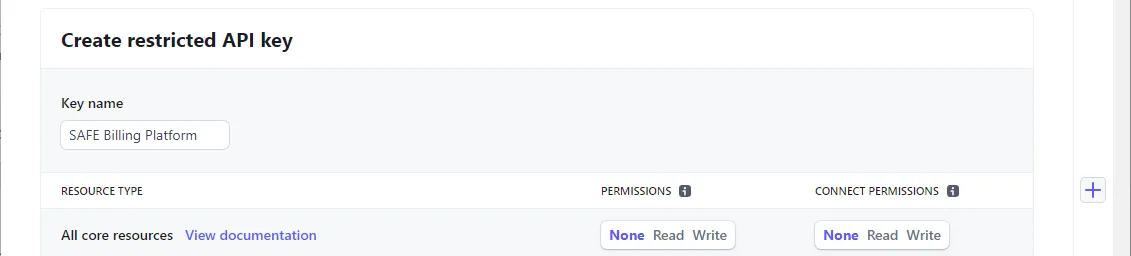
Once you have your keys, enter them in the platform. Go to Stripe > API Keys in the main menu. This page requires admin-level access.
The publishable key begins with “pk_test_” or “pk_live_”. The restricted key begins with “rk_test_” or “rk_live_”. You will need to click Reveal key in Stripe to copy the restricted key. Treat this key as a password: do not send it by email.
Keys for the test environment should be entered in the Test fields. Once testing is complete, repeat the process with live keys.
Activating Direct Debit on Stripe
Section titled “Activating Direct Debit on Stripe”Skip this section if you only intend to take card payments.
To collect BACS Direct Debit through Stripe, the scheme must be switched on at the Stripe account level. This is a separate step from the API key and cannot be granted through key permissions.
In your Stripe dashboard, go to Settings > Payment methods and enable Bacs Direct Debit. Stripe will ask for business details to verify your account. Activation is not instant, Stripe may take a few working days to approve BACS for your account, and you cannot collect by Direct Debit until it is active.
Once BACS is active on your Stripe account, the platform will be able to create mandates and collect Direct Debit payments using the same API keys set up above.
Setup Complete
Section titled “Setup Complete”Once testing is complete and the live API keys have been added to the platform, the setup is complete. You can begin collecting card payments straight away, and Direct Debit payments once BACS has been activated on your Stripe account.